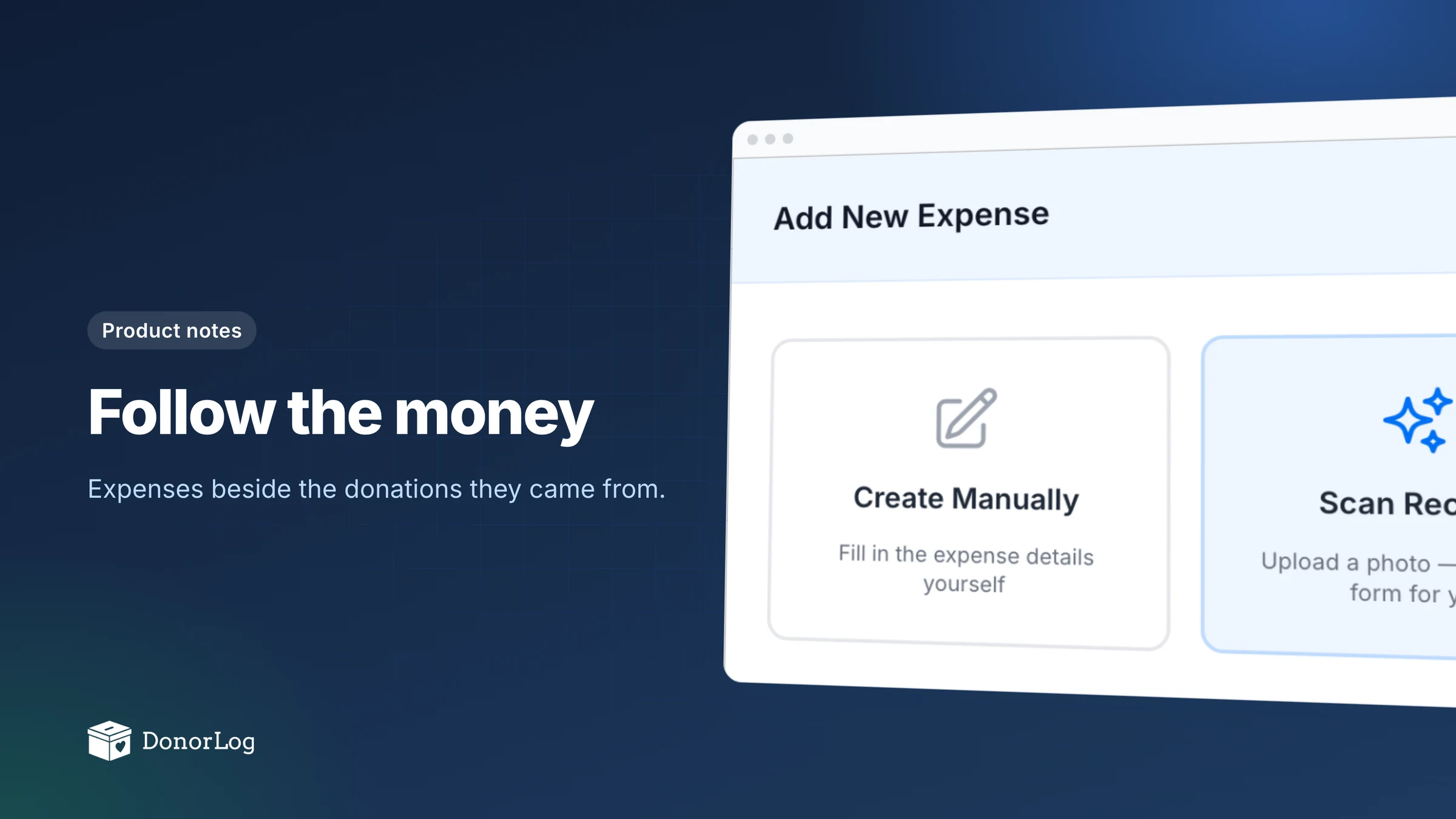
Most charities are careful with the money coming in. It gets recorded, receipted and thanked. The money going out is often a shoebox of receipts and a spreadsheet that exactly one volunteer understands.
That split shows up at the worst moments. A donor asks what the coat drive actually bought. The board wants to know whether the gala made money once you count the hall. A grant report wants spending set against the money you received. Each time, someone ends up lining up two systems by hand.
We think expenses belong next to donations, filed under the same campaigns and branches. Expenses have been in DonorLog for a while, but we've added a fair bit this year, so it felt like a good time to walk through them.
Adding one
Click Create Expense and you get a choice.
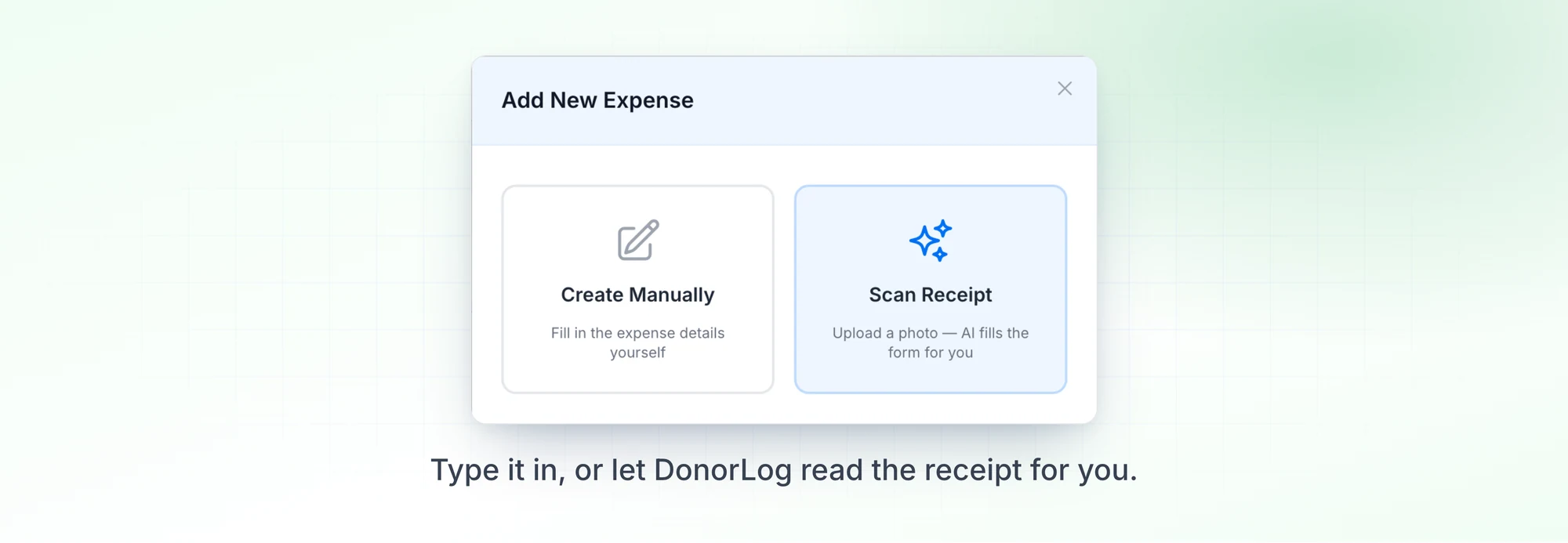
Create Manually is the regular form. You give it a name, amount and date, and file it under a campaign and a category (you can add a category from the form). The rest is optional: vendor, who made the purchase, payment type, event name, notes, tags, and branch if you use branches. You can attach the receipt and later open it full screen or download it from the expense details.
Scan Receipt is the one people try first. Upload a photo of the receipt (JPEG, PNG, GIF or WebP, up to 5 MB) and DonorLog reads it and fills in what it can: vendor, a name for the expense, amount, date and notes. If the receipt clearly matches one of your categories, it picks that as well. The photo stays on screen beside the form and the filled-in fields are highlighted, so you can check each one against the paper.
I want to be clear about that last step. Reading receipts is a reasonable job for AI, but it isn't perfect, and a wrong number in your books is worse than a slow one. So the scan only fills in the form. Nothing is saved until a person looks it over and clicks save. PDFs can't be scanned yet; for those, use the manual form and attach the file.
Totals and exports
Above the expense list there's now a line showing how many expenses match and what they add up to. It follows your filters. Choose a campaign, category, branch or date range and the count and total change with it. "What did the youth program spend this spring?" turns into a filter and a glance.
When the numbers have to go somewhere else, Export in the menu gives you a CSV. You choose the columns, and it respects whatever filters are on. Each export is stamped with the date it was made, so last month's file doesn't get mistaken for this month's.
That old spreadsheet
Nobody starts with an empty expense list. There's always a spreadsheet going back a year or three, so we built an importer for it.
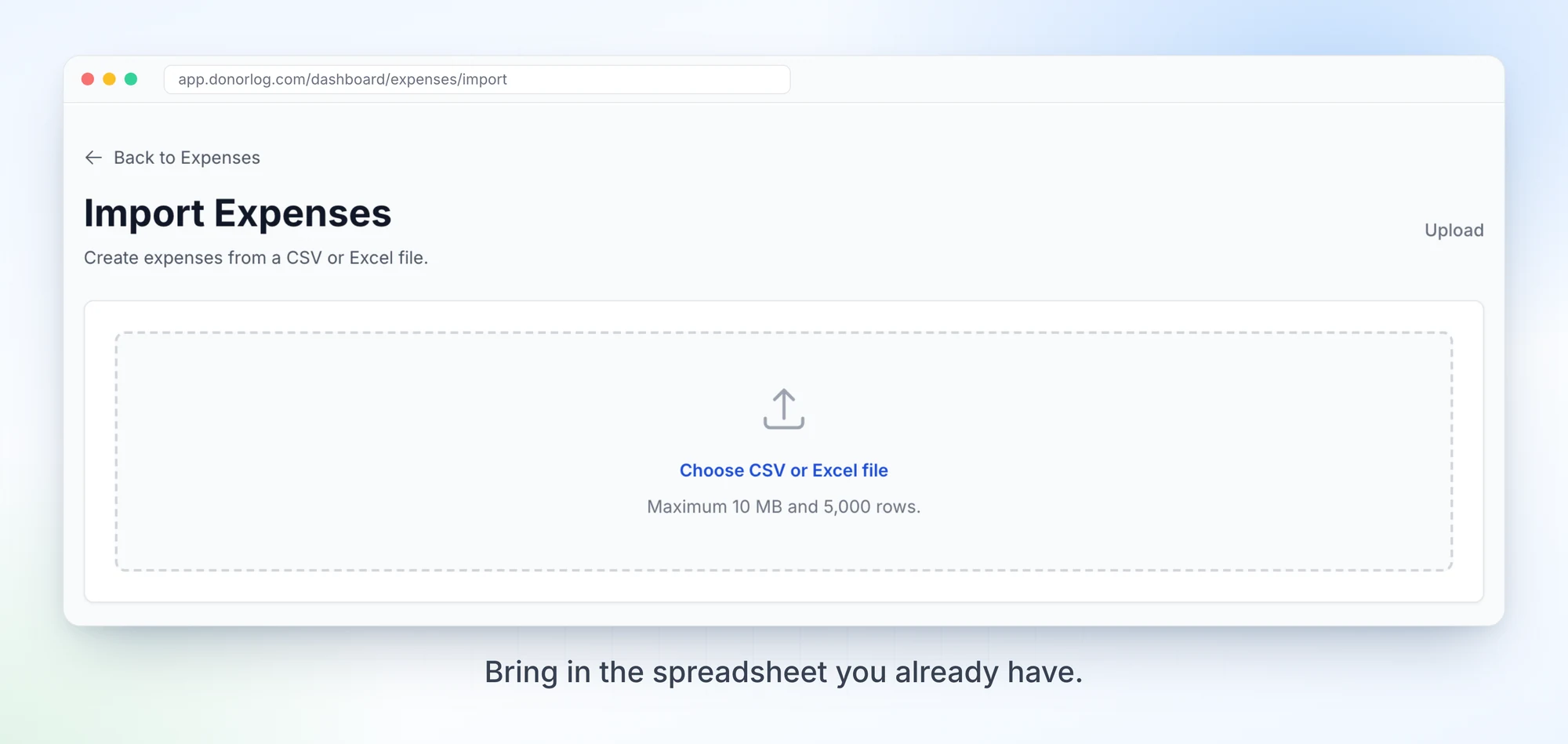
Choose Import CSV from the Expenses menu and upload a CSV or Excel file, up to 10 MB and 5,000 rows. You tell DonorLog which column is which. Name, amount, date, campaign and category are required, and everything else is optional. Then it shows how the names in your file line up with your campaigns, categories and branches. New categories can be created once you confirm them, but campaigns and branches have to exist already, so a typo can't quietly invent a new campaign. Good rows go in. Rows with problems are listed so you can fix them.
Two things make re-importing safe. Your column mapping is remembered, so next month's file from the same place goes faster. And DonorLog knows what it has already imported, so rows that turn up again in a later file are skipped instead of doubled.
Receipt files don't come along with an import. Attach those to individual expenses if you need them.
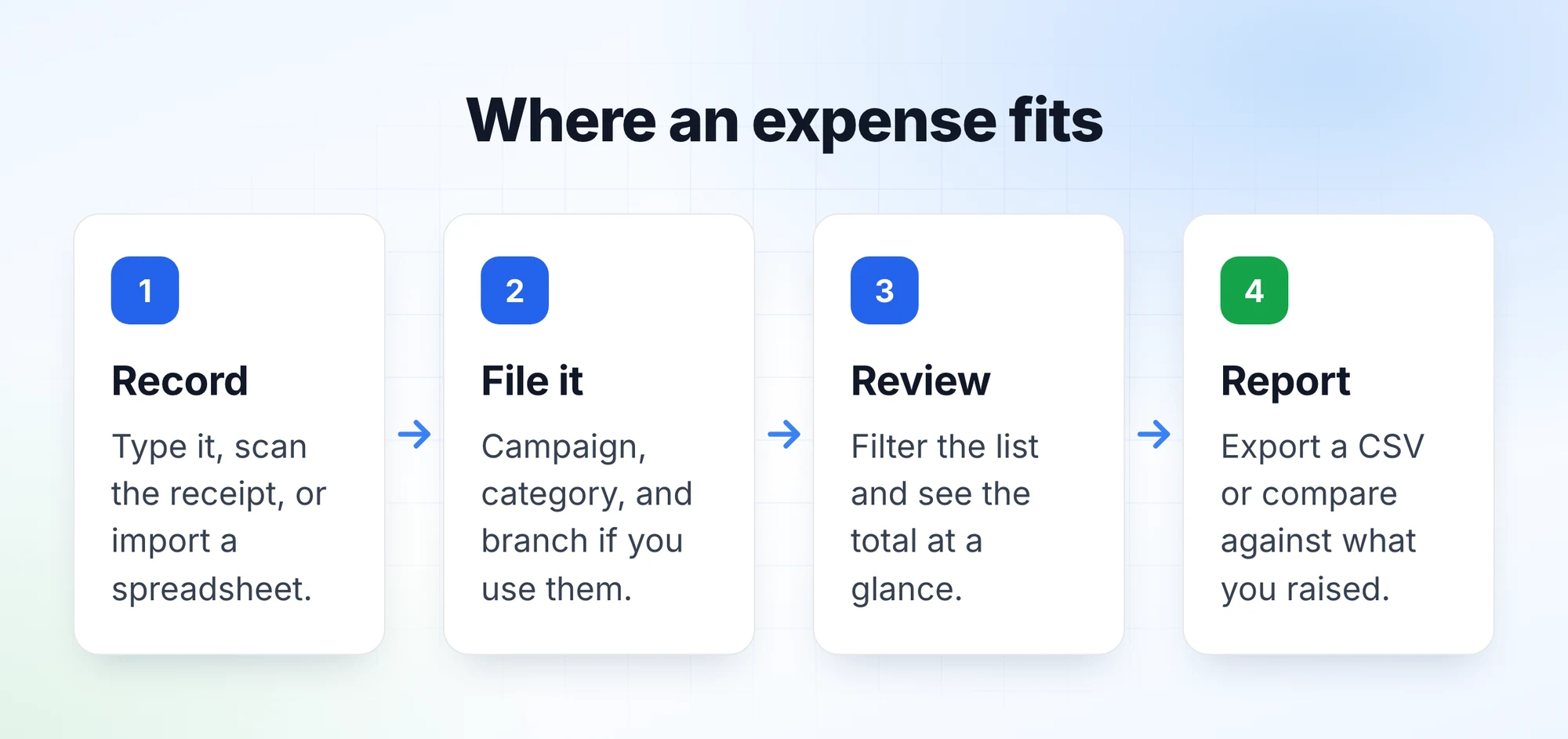
We covered the reporting side, expense reports included, in Reports That Help You Lead, Not Just Record. What's different now is that "raised" and "spent" come from the same place.
If you've got a shoebox, start small. Scan this week's receipts as they come in, and do the import when you have a spare hour.