Ask a treasurer at a Canadian charity how donations come in and you'll hear "e-Transfer" before you hear anything else.
It makes sense. Donors already have it in their banking app, there's no card fee, and nobody has to create an account anywhere. The trouble starts on your side. Each gift arrives as an email from Interac, and someone has to open it, copy the amount, the name, the date and the reference number into a spreadsheet or donor system, then work out who "J SMITH" actually is. Do that forty times after a fundraising weekend and you'll make a mistake somewhere, usually one you only find in February when a donor says their receipt is wrong.
E-Transfer support is the feature our customers ask about most, so we've kept working on it. This post walks through how it works today, from the email landing to the tax receipt going out.
It starts with a forwarding rule
DonorLog never connects to your bank account. We don't ask for banking logins and we can't move money. What we read is the deposit notification Interac already emails you.
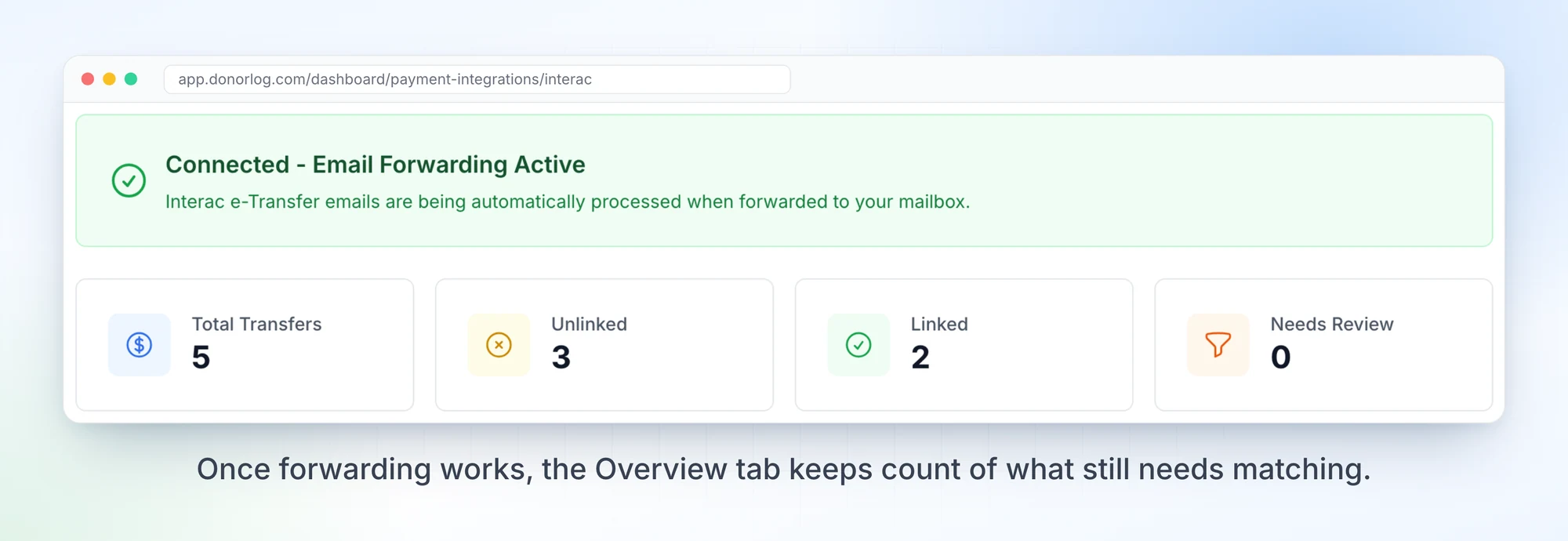
Every organization gets a DonorLog mailbox address. You set up a forwarding rule in whatever inbox receives your e-Transfer notifications (the ones from notify@payments.interac.ca) and point it at that address. That's the whole setup. Once it's working, the Overview tab under Payment Integrations → Interac e-Transfer shows that forwarding is active, with a running count of transfers and how many still need attention.
If you run more than one location, each branch can have its own mailbox address. Transfers forwarded to a branch's address are tagged with that branch, and the Transfers tab has a branch filter, so the downtown site and the east-end site don't have to sort each other's deposits.
What DonorLog does with each email
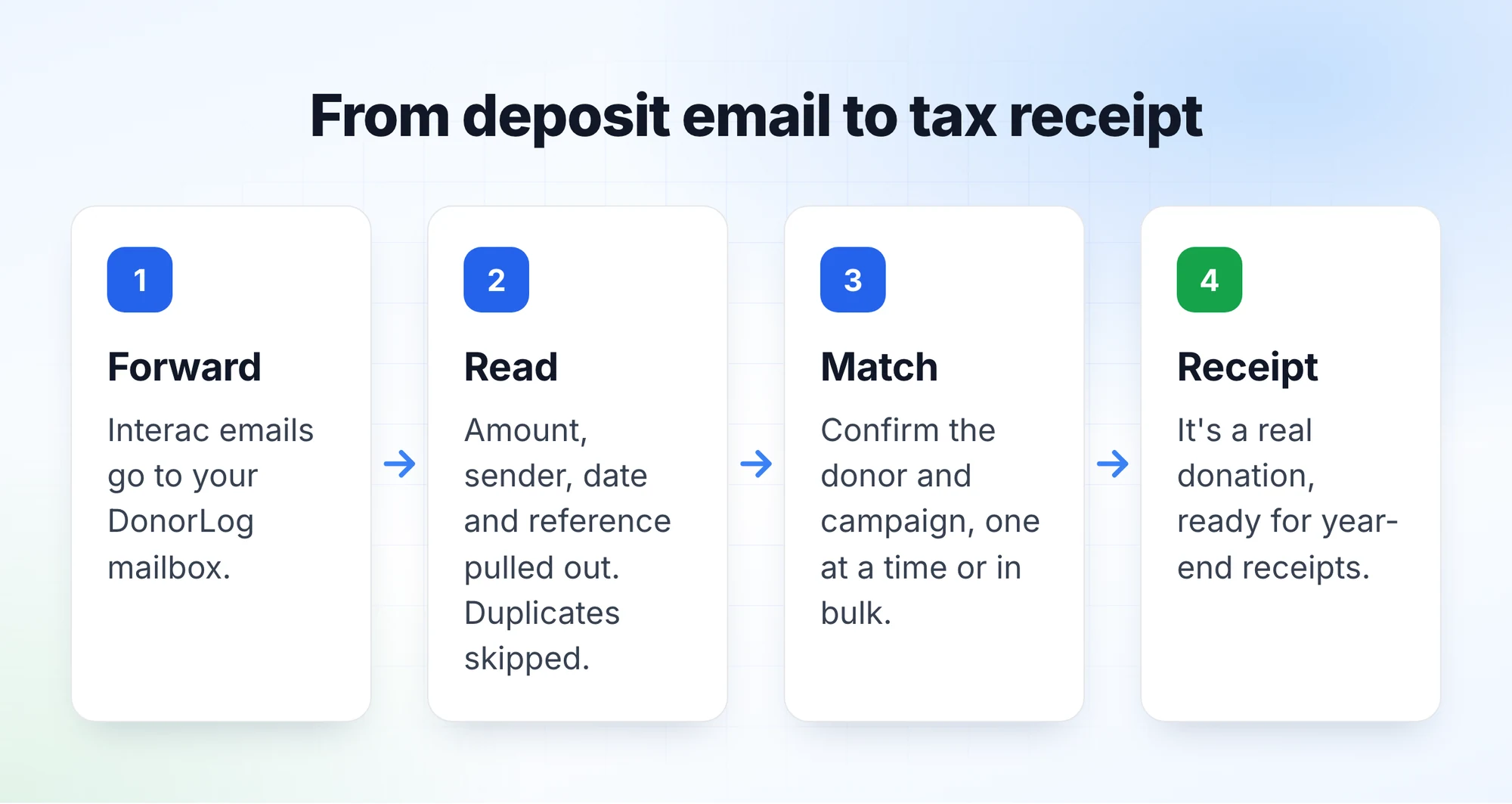
When a forwarded email arrives, DonorLog checks whether it's an Interac notification. If it is, it pulls out the amount, the sender's name, the date from the transfer details, the reference number, the donor's message if they left one, and the last digits of the receiving account. The original email is kept, so you can always click the eye icon and read exactly what Interac sent.
Two things happen before anything reaches you.
First, duplicates. Forwarding rules misfire, people forward the same email by hand "just in case", two staff members both get the notification. Every e-Transfer has a reference number, so if one shows up that DonorLog has already seen, the new copy is marked Ignored straight away. No double-counted gift, and no awkward conversation about a receipt for twice the real amount.
Second, anything DonorLog couldn't read properly. If there's no amount in the email, we don't guess. The transfer goes into Needs Review with the original email attached, and a person decides.
Then you get a notification in the bell at the top of DonorLog, "New Interac e-Transfer", with the amount and sender. Clicking it takes you to the Transfers tab.
Matching a transfer to a donor
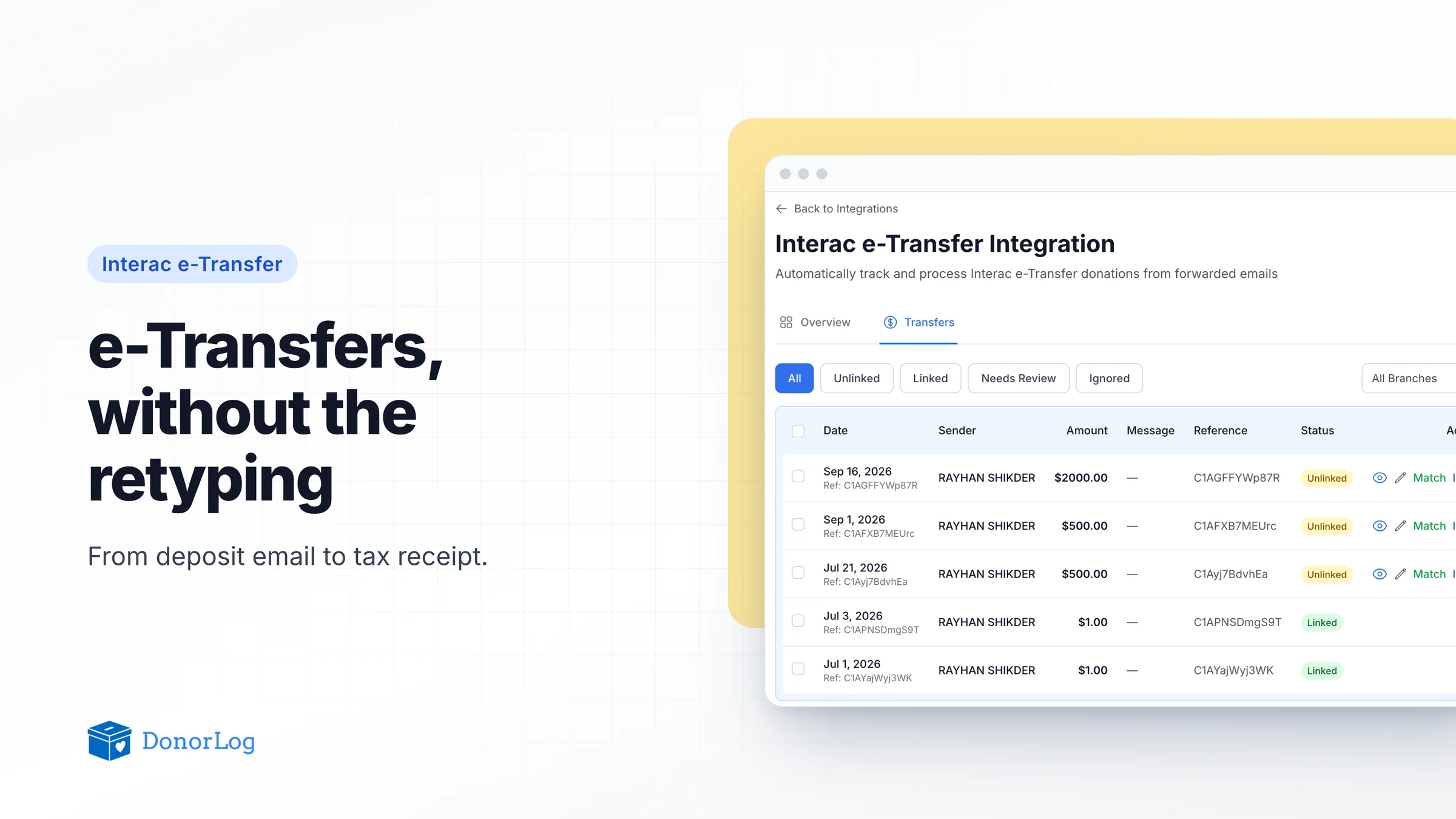
The Transfers tab is where the actual work happens. Filters across the top cover each state: All, Unlinked, Linked, Needs Review and Ignored. Each unlinked row has Match and Ignore buttons, plus a pencil for editing.
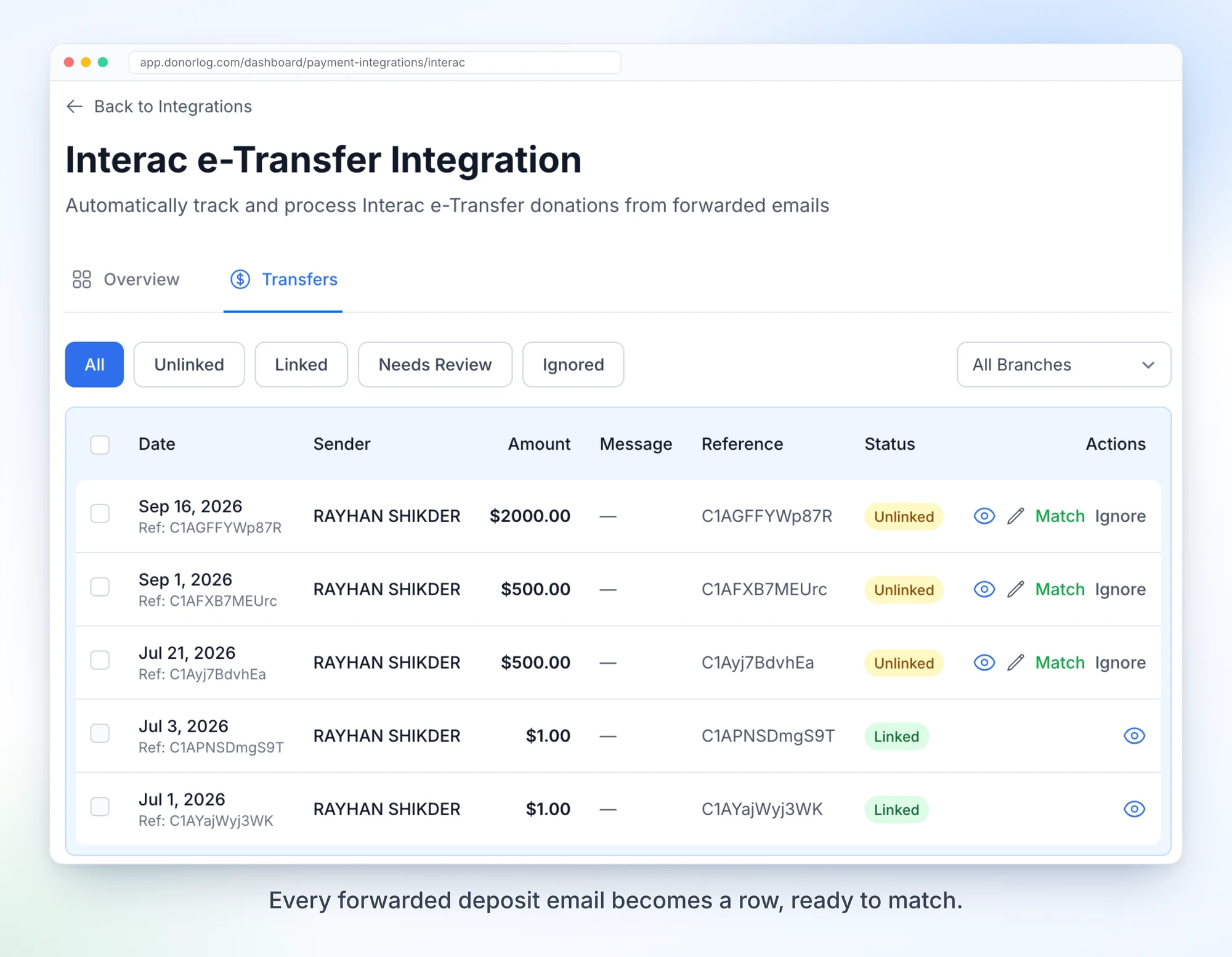
Click Match and DonorLog opens the donation form already filled in. It suggests a donor by looking for someone whose name contains the sender name on the transfer. That works well for people who send from their own account, and less well for "SMITH HOLDINGS INC" or a spouse's account, so check it before you save. If the sender is someone new, you can create the donor right there.
You choose the campaign, save, and the donation is created with E-Transfer as the payment type, the transfer's amount and date, the branch it came in on, and the donor's message and reference number in the notes. If the donor has an email address on file, they get the usual donation confirmation.
One thing we fixed this year that you'll hopefully never notice: creating the donation and marking the transfer as linked now happen together or not at all. Before, a dropped connection between the two could leave you with a donation whose transfer still said Unlinked, and the next person along would match it again. Now if the same match is sent twice, DonorLog recognizes it and doesn't create a second donation.
The pencil lets you change a transfer's amount or move it between Unlinked, Needs Review and Ignored. That's mostly for the Needs Review pile, and for the odd transfer that wasn't a donation at all (a refund from a vendor, say).
When there are forty of them
After a gala or a big Ramadan or Giving Tuesday push, matching one at a time gets old fast. So every unlinked row now has a checkbox. Tick the ones you want, or the header box for the whole page, and use Match selected or Ignore selected.
Match selected opens a review with one row per transfer and the suggested donor already filled in. Campaigns start blank, on purpose. Pre-filling the latest campaign would save a click, but it's also how forty donations end up in the wrong place without anyone noticing. There's a Campaign for all rows picker for when they really do belong together, and nothing runs until every row has both a donor and a campaign.
DonorLog then works down the list one transfer at a time. If one fails, the others carry on, and the summary at the end has a Retry failed button. Bulk match only works with donors who already exist. Match new donors individually so you can create them properly.
Where it pays off: tax receipts
This is the part that matters most in January. When a donor asks for a receipt through your tax receipt request page and says they paid by e-Transfer, the form asks for the reference number. When you review the request, DonorLog looks for donations from e-Transfers with that reference and the sender's name, and ranks what it finds. An exact reference match goes to the top.
Because every matched transfer is a real donation, with the right donor, campaign and date, it lands in your year-end receipt batch along with everything else. You don't need a separate e-Transfer spreadsheet to reconcile in December.
If e-Transfer is a big part of how your donors give, this is where I'd start with DonorLog. Set up the forwarding rule, send yourself a small e-Transfer, and watch it show up on the Transfers tab. If you get stuck, email us at admin@glaceit.ca and we'll help you set it up.